No problem — it only takes a couple of minutes. Follow the steps below to set up your free CPP Portal account, then you'll be able to schedule deliveries, pay your bill, check your tank level, and more, anytime you want.
Don't have your Account Number, or not sure where to find it? No problem — give us a call at (860) 365-5218 and we'll look it up for you, or check your most recent delivery ticket or bill. Your account number is printed right at the top.

| Customer #: | 10234 |
| Payment Terms: | Net 30 |
| Invoice #: | 100001 |
| Invoice Date | 2026-01-01 |
| Invoice Total | $0.00 |
The "Customer #" shown at the top of your invoice or delivery ticket is your Account Number.
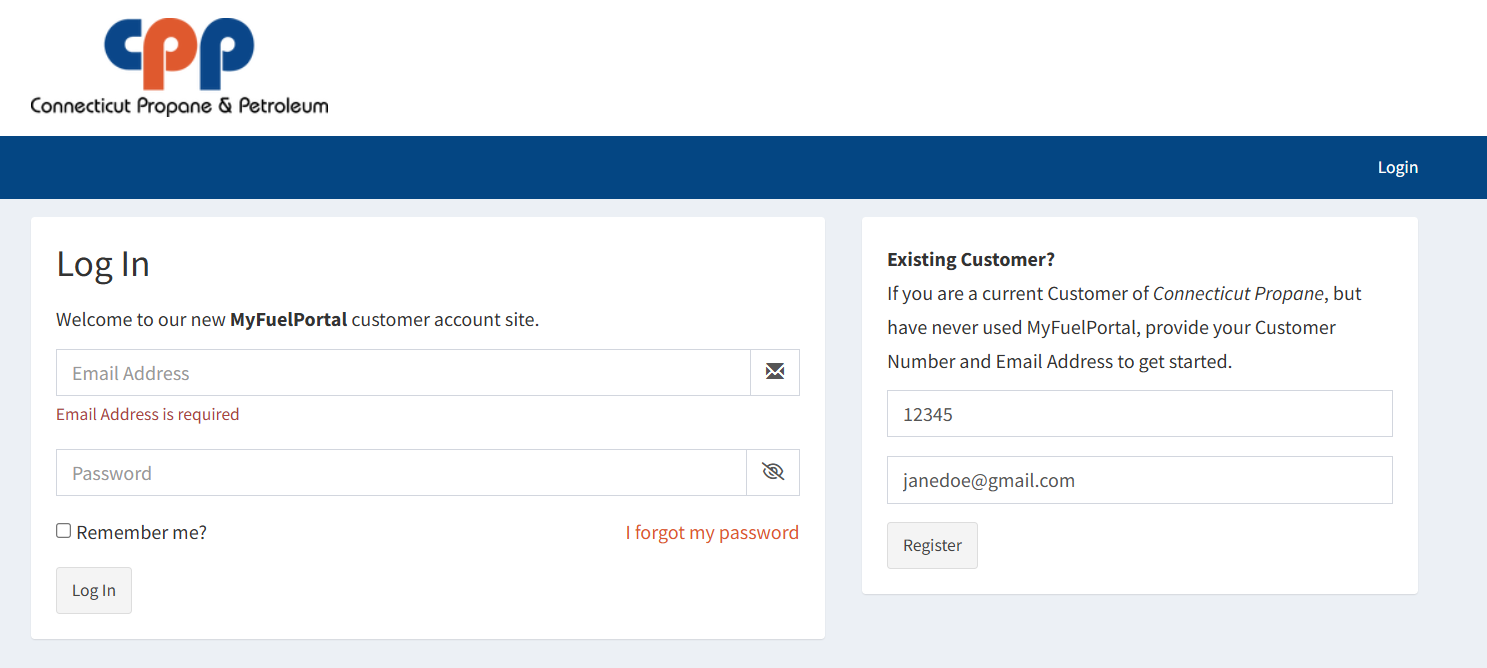
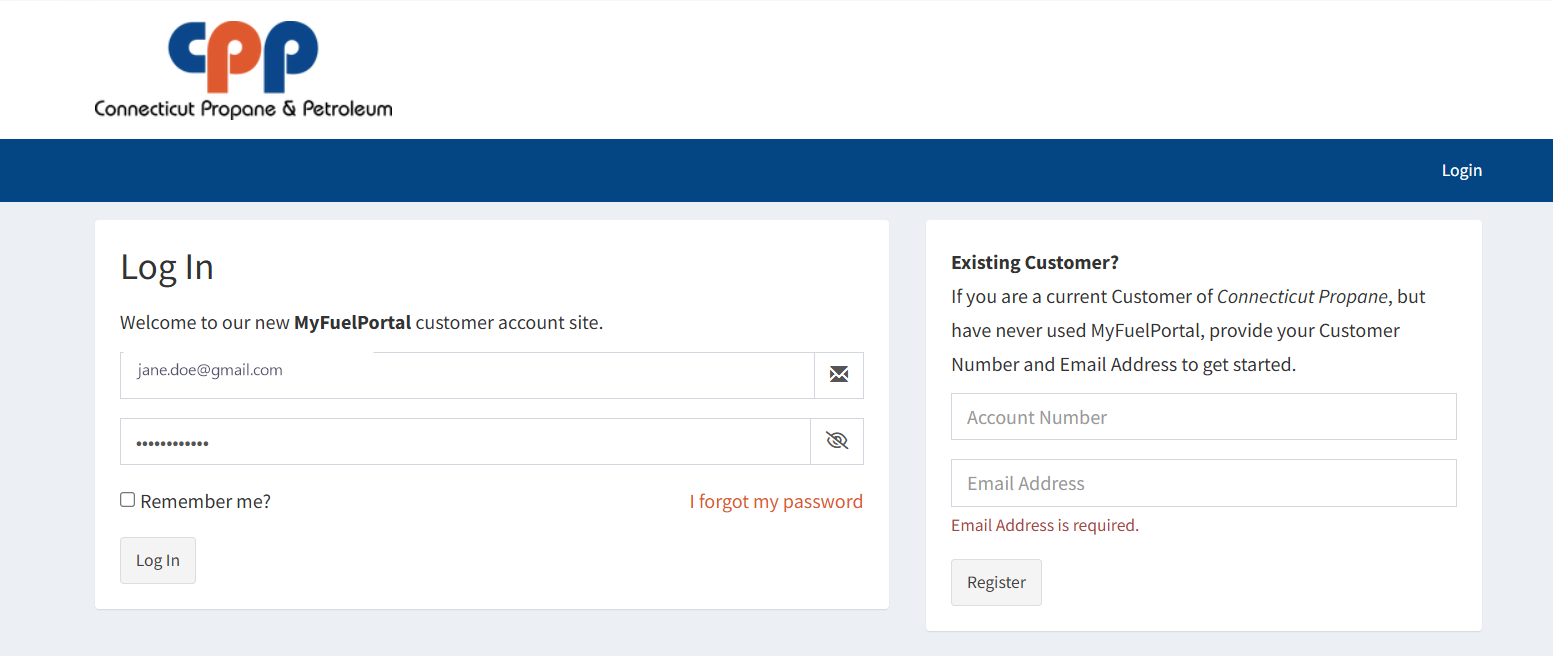
Visit connpropane.myfuelportal.com (or click "Go to CPP Portal" from our homepage). On the right-hand side, under "Existing Customer?", enter your Account Number and Email Address, then click Register.
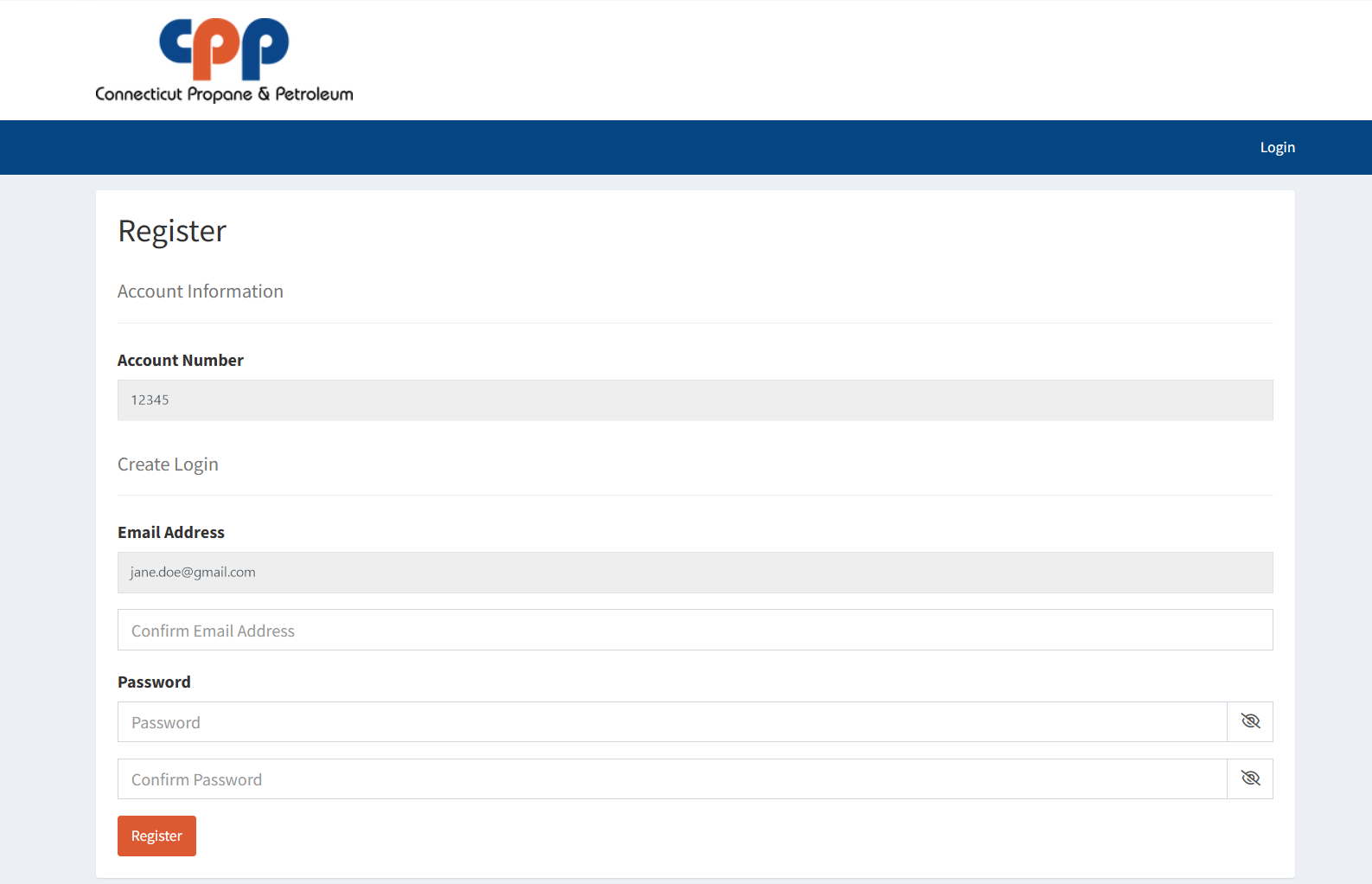
This opens the Register page with your Account Number and email already filled in. Confirm your email address, then create and confirm a password.
Click Register to finish setting up your account.
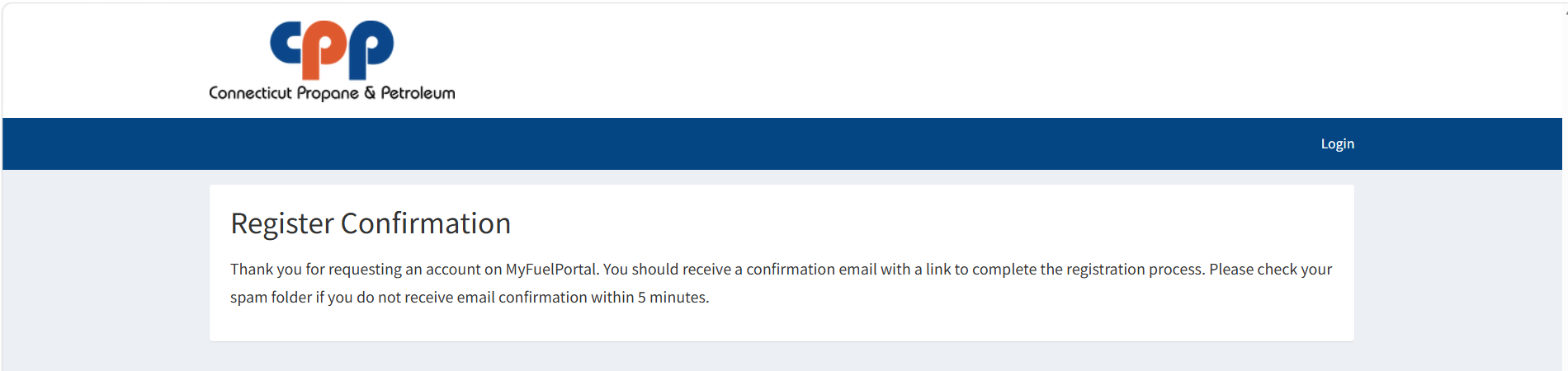
You'll see a "Register Confirmation" message letting you know a confirmation email is on its way. Check your inbox — and your spam folder, just in case — for an email from Connecticut Propane within about 5 minutes.
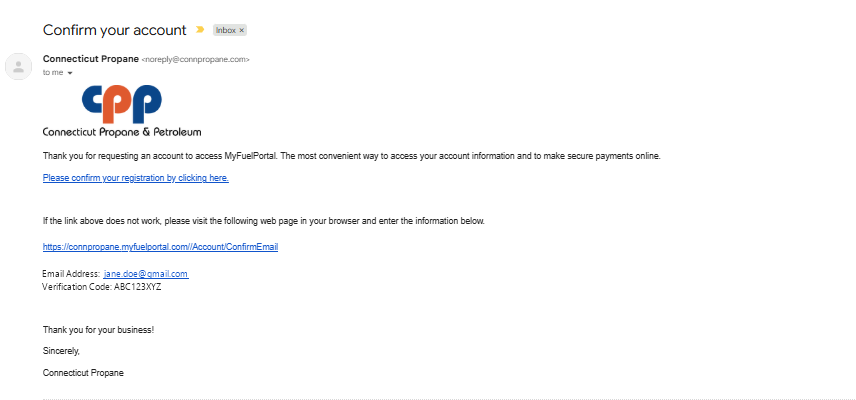
Open the email titled "Confirm your account" from Connecticut Propane, and click "Please confirm your registration by clicking here."
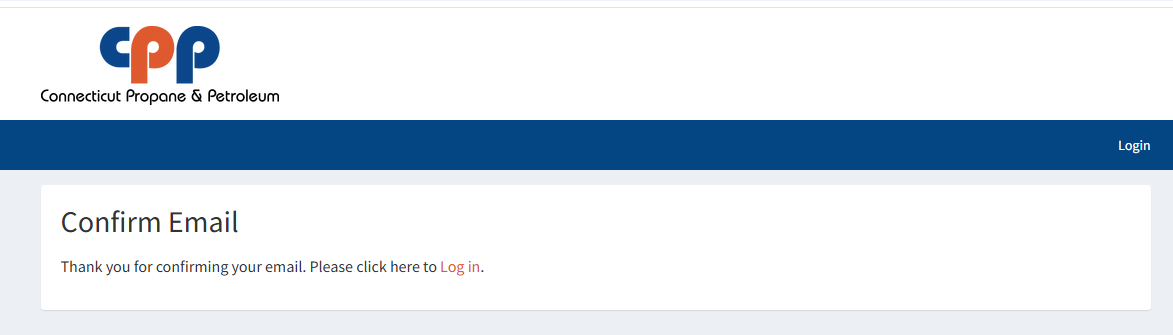
Back on the CPP Portal, you'll see a "Confirm Email" message thanking you for confirming your email. Click "Log in" to continue.
Enter the email address and password you just created, then click Log In.
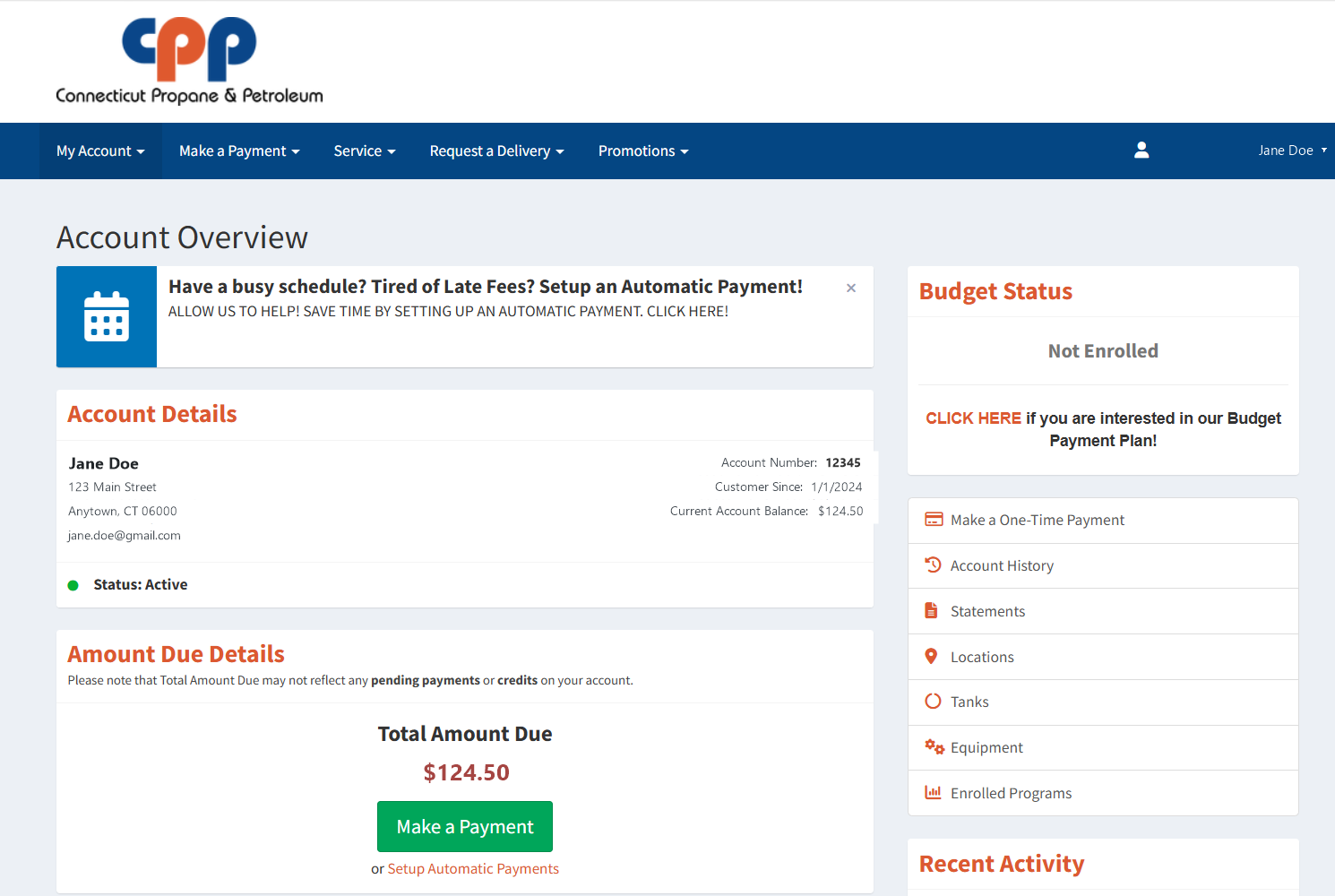
Welcome to your Account Overview. From here you can see your balance and recent activity, and use the menu at the top to make a payment, schedule a delivery, request service, check your tank level, view statements, and more.
Once you've registered, log in anytime to manage your account — or give us a call if you run into any trouble along the way.